🎆 QBurner — Help & Documentation
Choreograph the show.
Let QBurner keep the timing.
A guide to building, previewing, and exporting a synchronized pyrotechnic-musical fireworks show in QBurner.
01Getting Started
Every show in QBurner starts the same way — set up your stations, then start placing ques against your music.
Create a new show
Open QBurner and choose File → New. A new, empty show opens with a default set of stations ready to go.
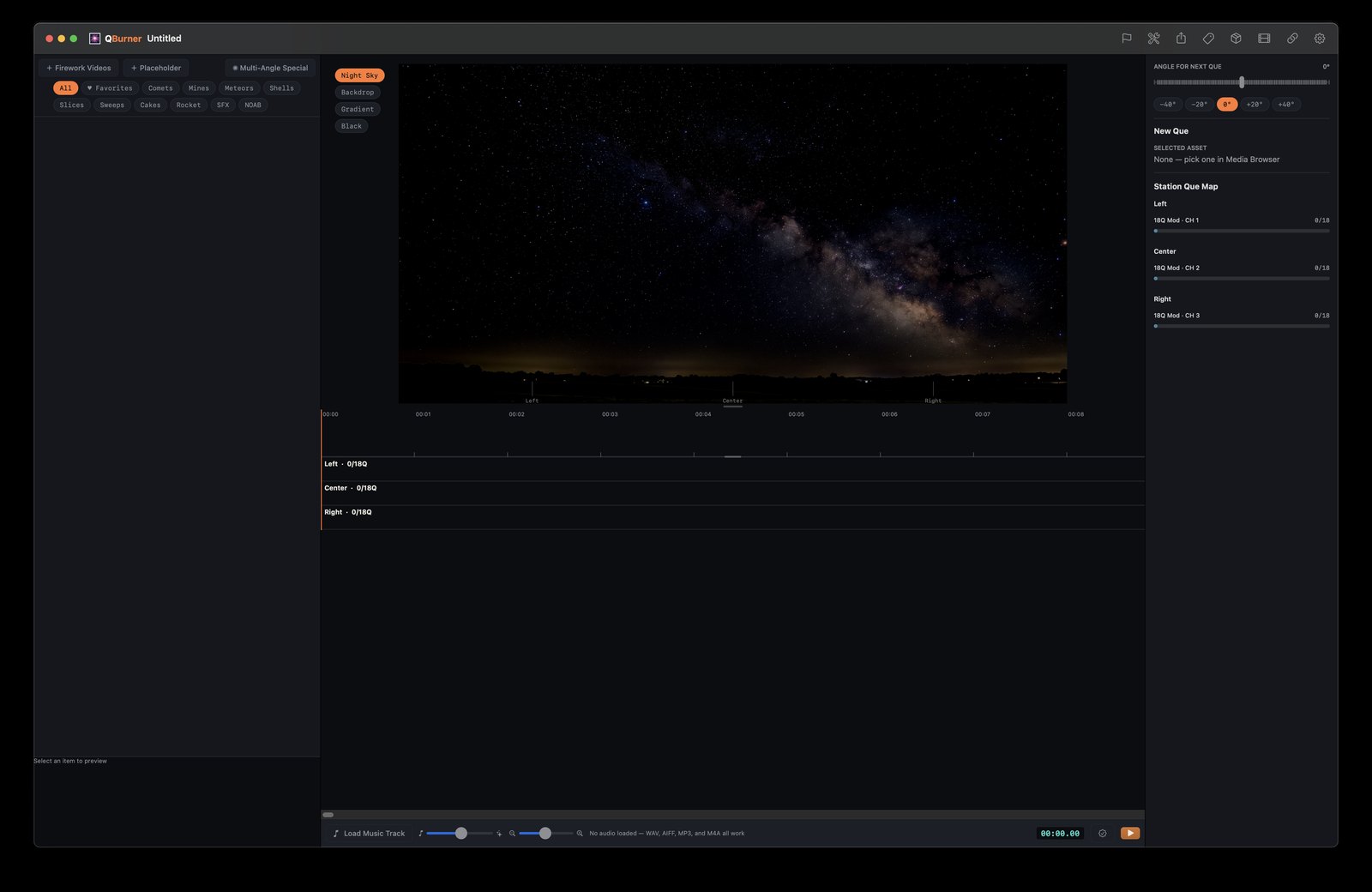
A freshly created show — the empty three-pane workspace before any media or ques have been added.
Project Setup
Open Project Setup from the toolbar to configure the show before you start placing ques:
- Stations — the physical firing positions in your show (e.g. Left, Center, Right). Each station gets its own row on the timeline.
- Mods (wiring assignments) — the modules your stations wire into, and how many channels each one has available.
- Igniter delay — the time between a firing signal and the actual ignition, used to keep audio and visual timing accurate.
- Audience distance and speaker distance — used to calculate the sound delay between a shell's burst and when the audience actually hears it, so the show can be timed to look right from where people are standing, not just from the firing line.
If your show already has ques placed and you change stations or mods in Project Setup, QBurner re-evaluates every existing que's mod assignment to fit the new configuration. You'll see a warning before this happens.
Add your music
Use the Add Audio control to import the show's music track. This becomes the backbone of your timeline — you'll place ques against the waveform to sync fireworks to specific beats and moments.
02The Workspace
QBurner's main window is split into three panes, each with its own job.
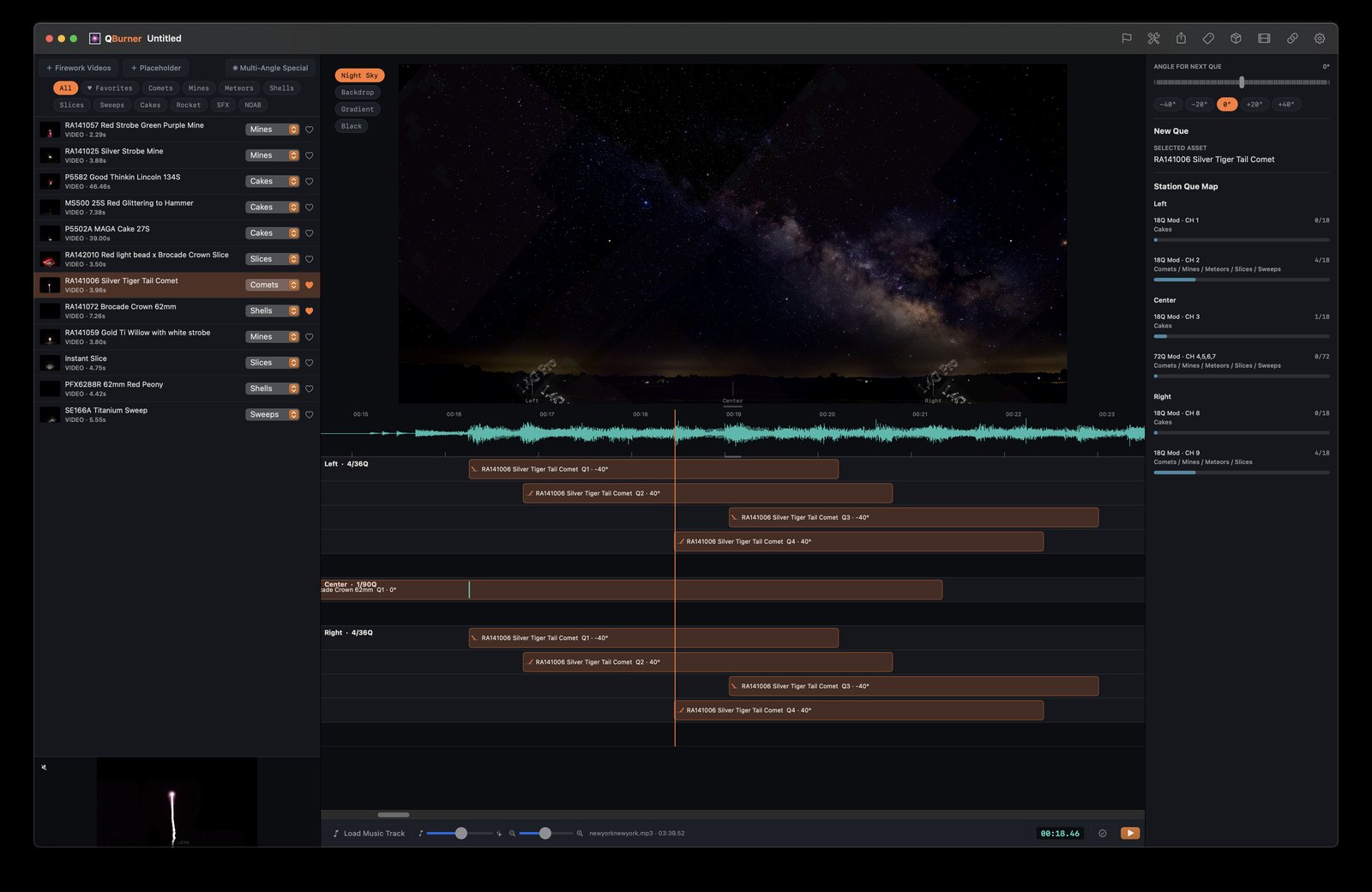
The full three-pane workspace: Media Browser on the left, Main Viewer and Timeline in the center, Inspector on the right.
| Pane | What it's for |
|---|---|
| Media Browser | Your library of firework videos, placeholders, and Multi-Angle Specials — organized by category. |
| Main Viewer + Timeline | A live preview of the show above a scrolling timeline where you place and arrange ques against your music. |
| Inspector | Details and controls for whatever's currently selected — a single que, several at once, or nothing (in which case it shows what the next placed que will use). |
You can resize any pane by dragging the divider between it and its neighbor, and resize the Main Viewer against the Timeline the same way. QBurner remembers both the window's size and position and each pane's width, so your workspace looks the same the next time you open a project.
03Media Browser
Everything you can place on the timeline — real footage, placeholders, and multi-angle combinations — lives here.
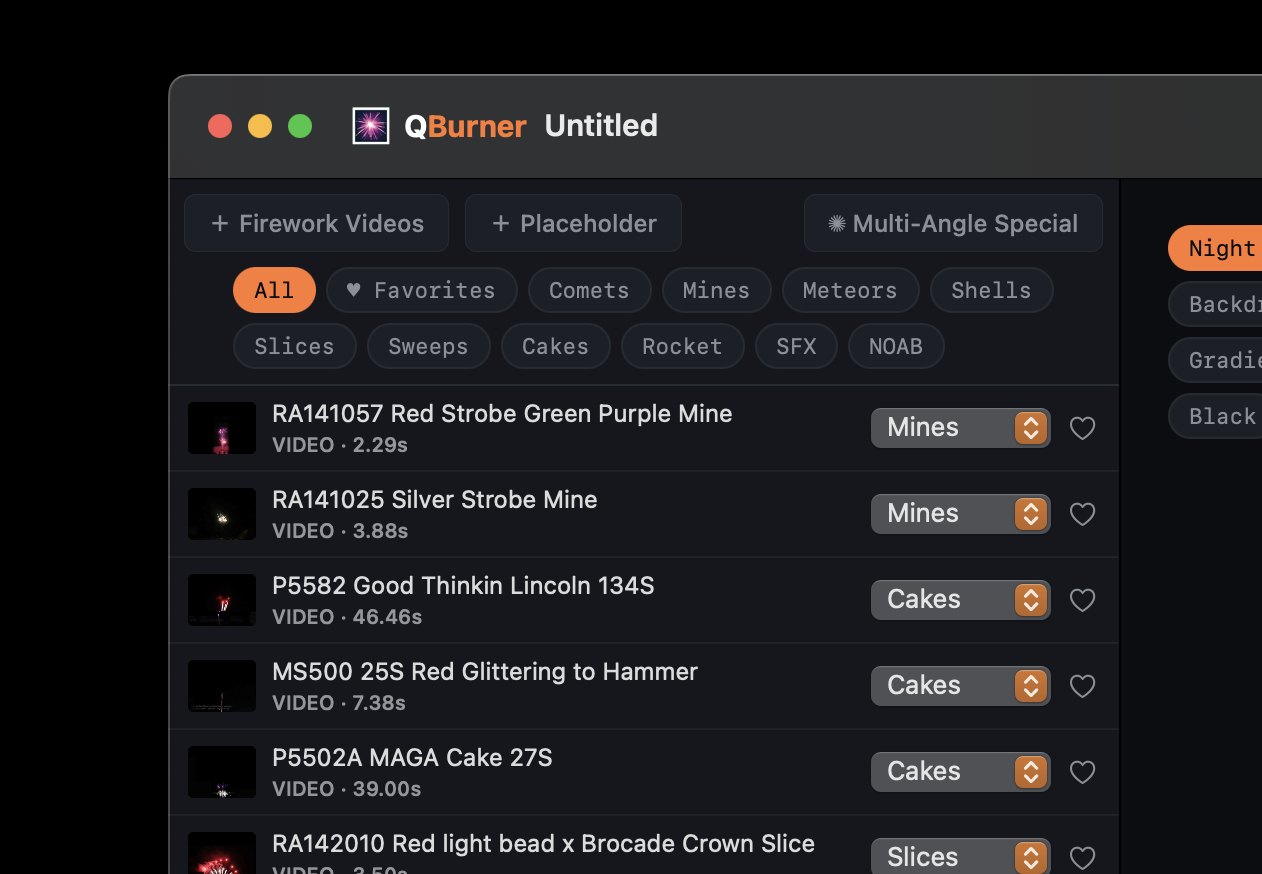
The Media Browser with several category filter chips visible and a mix of imported videos.
Adding firework videos
Click + Firework Videos to import one or more video files. QBurner automatically detects each clip's loudest moment (its "break," for a shell) and guesses a starting category based on the filename.
Categories
Organize your library with categories — assign one to each item, and use the chip filters at the top of the Media Browser to narrow the list down while you work. You can teach QBurner to recognize new items automatically by adding extra keywords to a category in Settings.
Tap the All chip to see everything, or select a specific category chip like Comets to filter the list.
Favorites
Mark frequently-used items as favorites for quick access — look for the ♥ Favorites filter alongside your categories.
Placeholders
Don't have footage for a shell yet? Add a placeholder instead, so you can block out timing before all your video is ready — swap in real footage later without having to rebuild the timeline.
Removing items
Right-click any item and choose Remove from Library, or select it and press Delete. If the item is already placed on the timeline, QBurner warns you first — removing it will also delete every que that uses it.
Multi-Angle Specials
A Multi-Angle Special fires the same shell from several angles at once — one timeline block, shown with a ✺ icon, that places one que per angle, all at the same time and station. Drag it and every angle moves together.
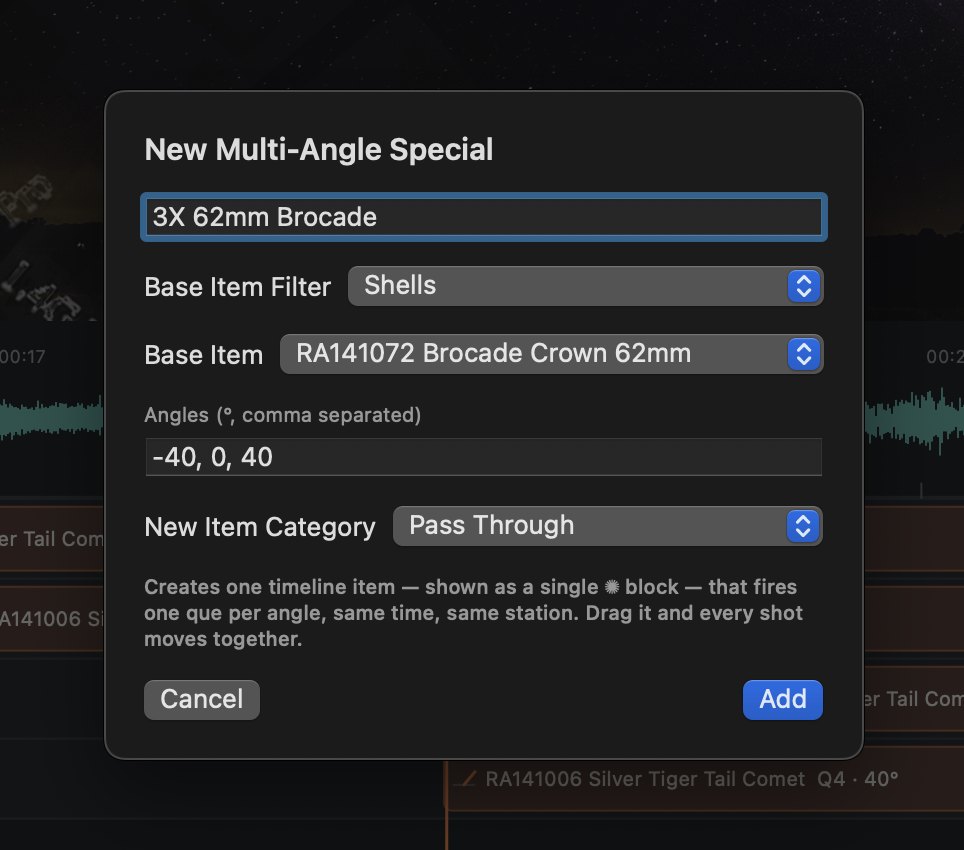
The New Multi-Angle Special dialog, showing the Base Item Filter, Base Item picker, angle list, and New Item Category picker.
Click ✺ Multi-Angle Special in the Media Browser to create one:
- Use Base Item Filter to narrow a large library down to the category you're looking for — this only filters the list below, it doesn't affect the new item itself.
- Pick the underlying video in Base Item.
- Enter the angles you want, separated by commas (e.g.
-40, 0, 40). - Leave New Item Category on Pass Through to have the new item automatically take on whatever category its base item already has — or pick a specific category to file it under something else.
Breakout Boards
A breakout board lets several shells share a single firing channel and que, wired together on one physical Mod in the field. QBurner supports two kinds:
- Multi-Angle breakout — turn on the breakout option for a Multi-Angle Special, and every angle in the group fires from one channel. The angle is locked once breakout is on, since the whole point is that the group behaves as a single wired unit.
- Ad hoc breakout — group two to five separate ques that already share the same station and time (for example, a Comet and a Cake going off together) onto one channel. Unlike a Multi-Angle breakout, each item's angle stays independently editable.
Both kinds require every item in the group to be categorized to a compatible Mod — QBurner won't let you form a breakout group across incompatible Mod types. If you move an ad hoc group's members apart in time or station, QBurner automatically dissolves the group for whichever item no longer matches the others, rather than leaving a broken pairing in place.
Grouped ques show a small BO badge wherever they appear — on the timeline, in the Inspector, and on printed stickers — so it's always clear at a glance which items are wired together.
04The Timeline
Where a show actually comes together — one row per station, ques laid out against your music's waveform.
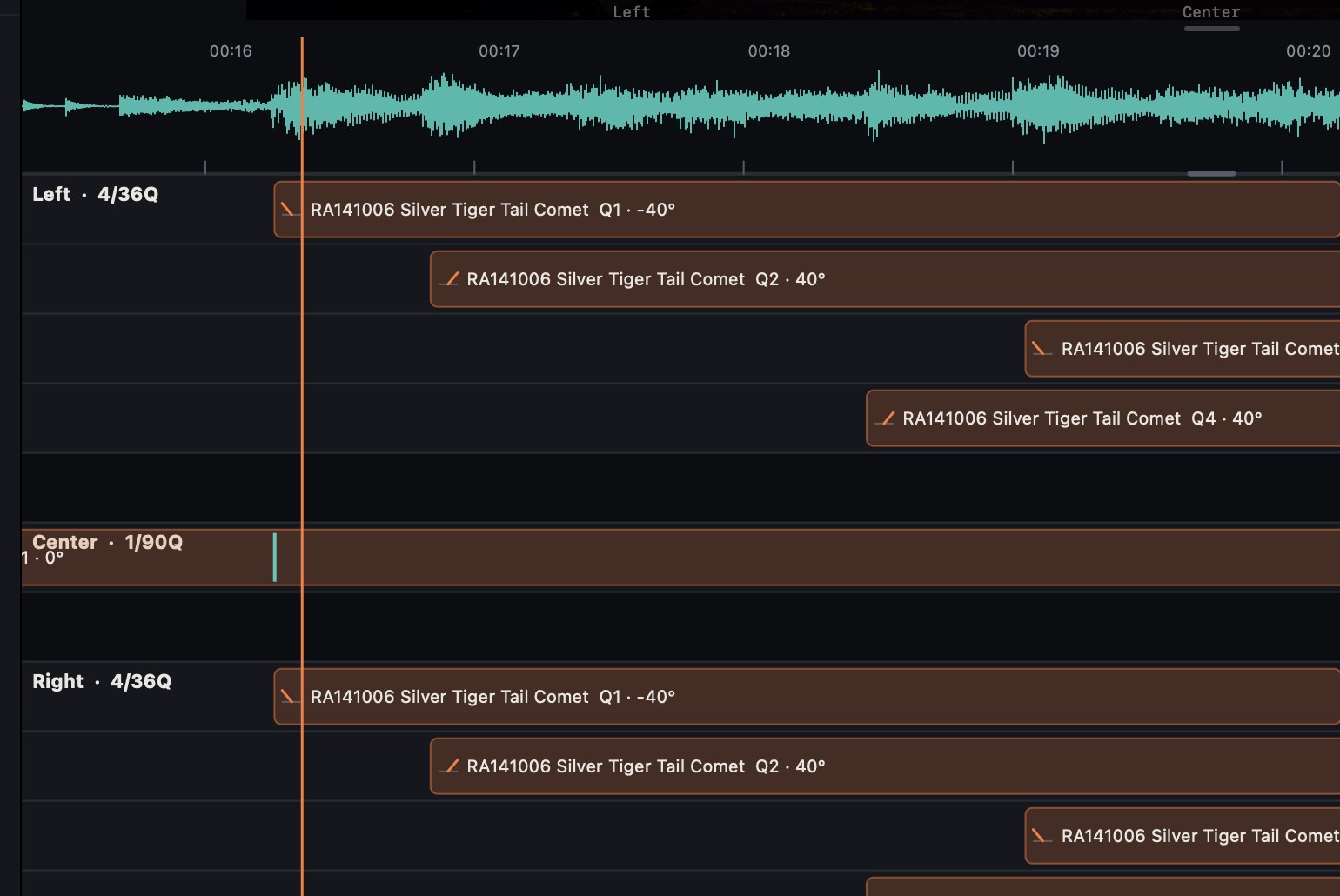
A populated timeline showing several stations, overlapping que blocks, the playhead, and the waveform.
Placing ques
Select an item in the Media Browser, position the playhead where you want it to fire, then press P (or Enter — they do the same thing) to place it there.
Hold Option while pressing P or Enter to place the item so its break marker — not the clip's start — lands under the playhead. This is what actually matters for lining a shell's burst up with a specific beat: the break, not the launch a moment earlier in the footage. Falls back to ordinary placement for items with no break marker (cakes, mines, or anything not yet analyzed).
Hold ⌘+Option while pressing P or Enter to place the item so its end lands under the playhead instead — useful for cueing something to finish exactly as the music hits a moment, rather than start there. If that would place the clip's start before 0:00 on the timeline, QBurner shows an alert instead of placing it.
Moving and nudging
- Drag a que left or right to change its timing, or up/down within a station to change its layer.
- Hold Option and press ↑ / ↓ to move a selected que to the adjacent station.
- If dragging a que would overlap another one already on that layer, QBurner automatically moves it to a new layer instead of letting the two collide.
Zoom
Use the zoom slider or the magnifying-glass buttons in the transport bar (or ⌘+ / ⌘-) to zoom the timeline in and out. Zooming keeps the playhead in view whenever possible, so you don't lose your place.
The break marker
A small teal tick mark on some clips shows their detected "break" — the loudest moment in that clip's audio — making it easy to line a shell's burst up with a specific beat in the music. Multi-Angle Specials show this too, based on whichever angle has the clearest audio.
Only shown for categories where a single loud moment is actually meaningful — Shells, Comets, Meteors, and Slices by default. A continuously-firing category like Cakes or Mines doesn't have one instant that's more meaningful than any other, so the marker is hidden there to avoid pointing at an arbitrary moment. Which categories show the marker is configurable in Settings — see Settings.
Quick angle changes
Right-click (or Control-click) a que to open a quick angle menu, rather than opening the Inspector — useful when you're placing several ques in a row and just need to set the angle on each one.
Selecting multiple ques
Shift-click or drag a selection box across several ques to select them together. The Inspector shows shared controls for the whole selection, and dragging any one of them moves the entire group. If a drag-selection touches any part of a Multi-Angle Special or a breakout group, the whole group is pulled into the selection — you won't end up with only part of a group selected.
05The Inspector
Controls for whatever's currently selected — always in the same place, so the panel doesn't shift around as you work.
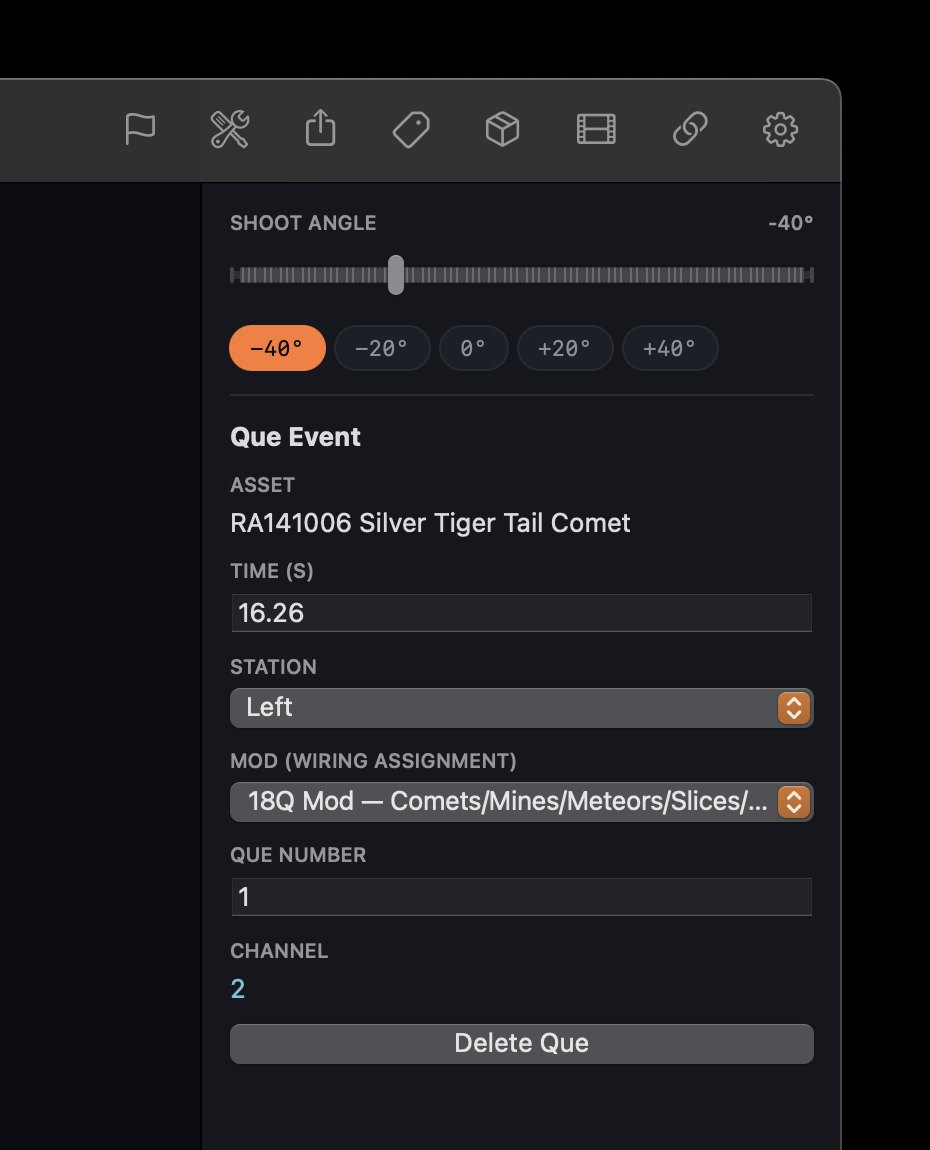
The Inspector showing a single selected que — angle controls at top, asset details, station, and mod assignment below.
Shoot angle
The angle slider and preset chips always sit at the top of the Inspector, regardless of what's selected — a single que, several at once, or nothing. This keeps the control you reach for most in a fixed, predictable spot.
Que details
For a single selected que, the Inspector shows its asset, time, station, mod assignment, que number, and channel — and a Delete Que button. The que number itself is display-only — QBurner assigns it automatically based on placement order, so it can't be typed into directly. The mod assignment stays editable, though a que that's part of a breakout group is locked to a compatible mod.
Multiple ques selected
Selecting several ques shows how many are selected and lets you set the angle for all of them at once. If they don't already share the same angle, the Inspector shows Mixed until you pick one.
Nothing selected
With nothing selected, the Inspector shows the angle that will be used for the next que you place.
Station Que Map
A live map of how full each station's mod channels are sits at the bottom of the Inspector at all times, regardless of what's selected — so you can always see channel usage while you work, not just when nothing is selected.
Breakout Boards
When a selected que is eligible for or part of a breakout group, the Inspector shows a breakout button that changes based on the situation:
- Eligible — items share a station, time, and compatible mod, so the button offers to form a group.
- Already grouped — the button shows the existing Multi-Angle or ad hoc group and lets you dissolve it.
- Ineligible — the button is disabled with a specific reason, most often: "Items must be categorized to the same mod to use breakout boards."
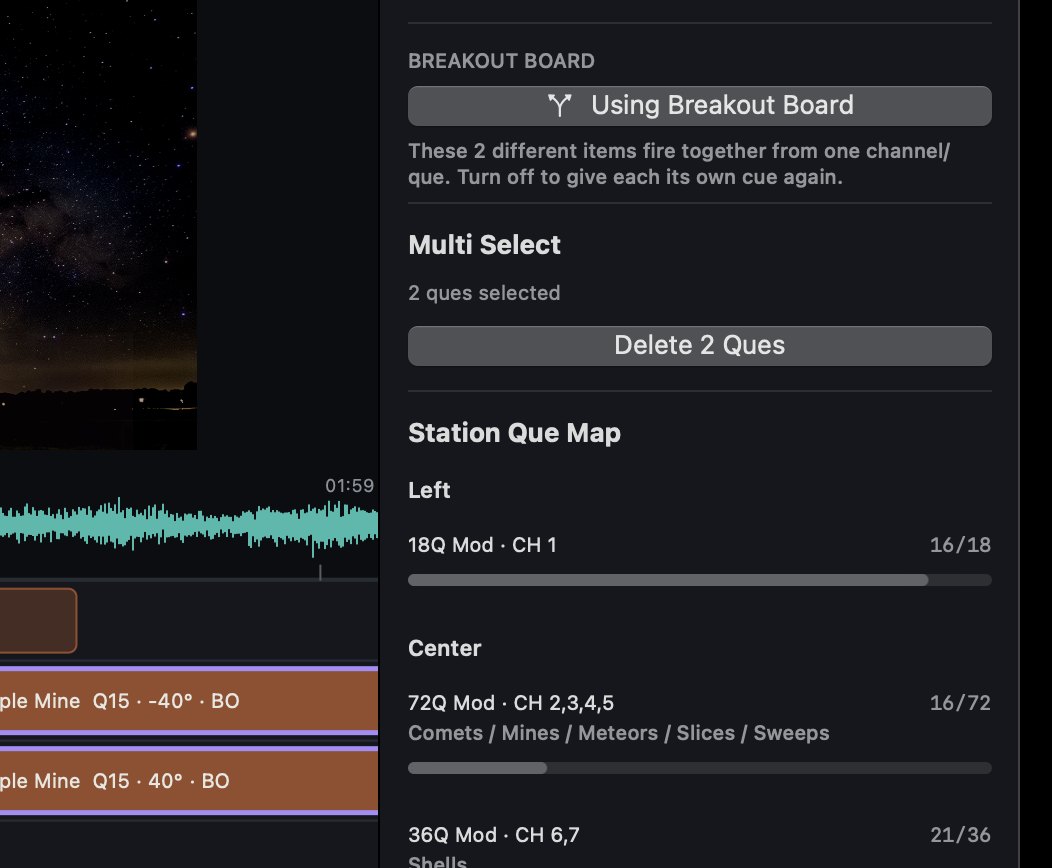
The Inspector's Breakout Board control, shown here already grouping two ques, with the Station Que Map below it.
06The Main Viewer
A live preview of the show as it plays, composited against a backdrop of your choice.
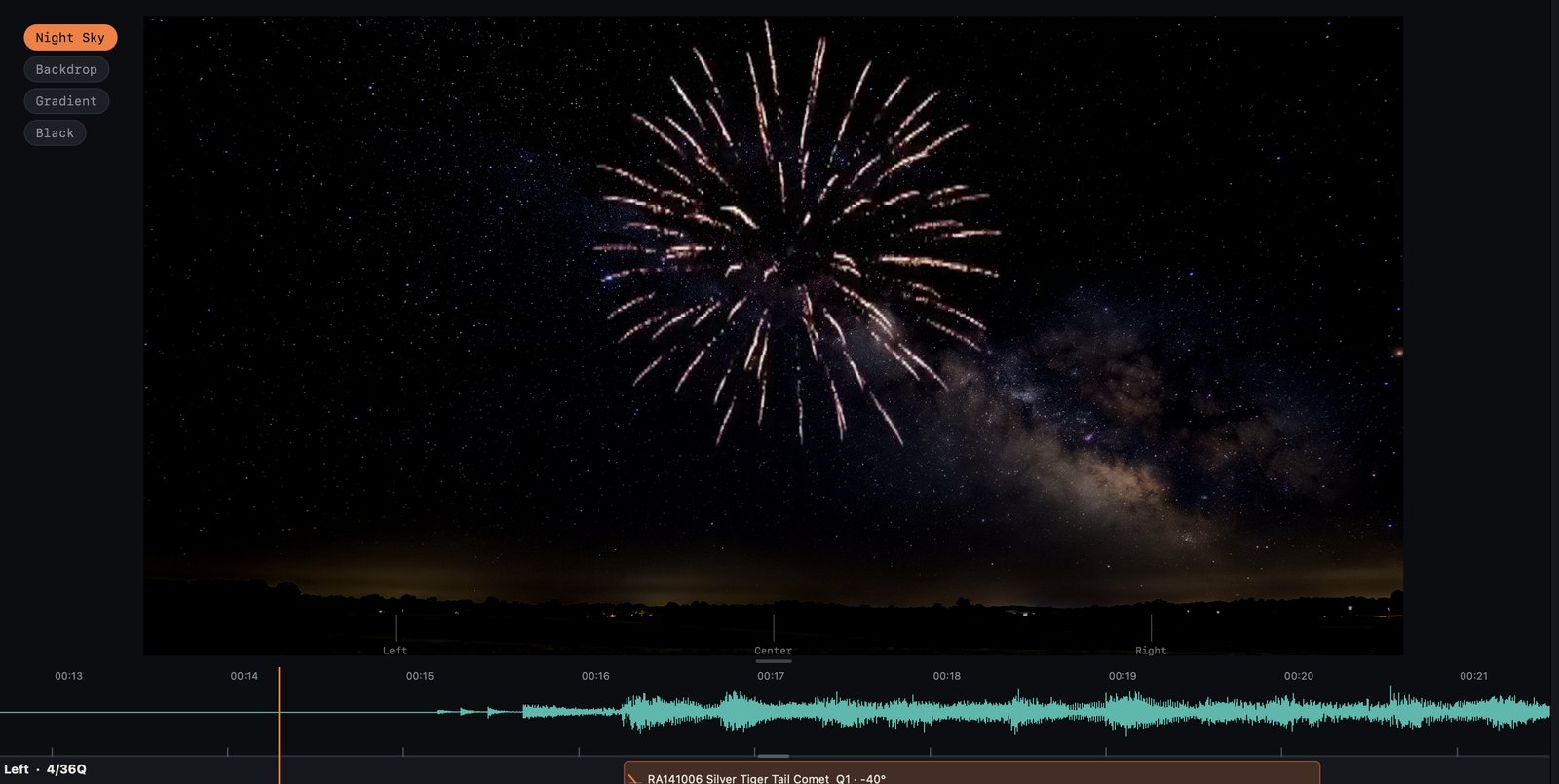
The Main Viewer during playback, showing the backdrop mode chips in the top-left corner.
Backdrop modes
Four chips in the top-left corner of the Main Viewer control what plays behind your fireworks, both live and in exported video:
- Night Sky — the bundled default backdrop.
- Backdrop — pick your own photo.
- Gradient — a plain grey-to-black gradient.
- Black — solid black.
Whichever one is active is highlighted. This is saved with the project, so it stays set the next time you open the show.
07Playback
Play the show back in sync with your music to check timing and drop in new ques on the beat.
Starting and stopping
Press Space or click the transport button to start and stop playback.
Playback stop backup
There's always a small amount of human reaction time between hearing a beat and actually pressing stop — which normally means the playhead lands a little past where you meant to stop. QBurner automatically backs the playhead up by a fixed amount whenever you stop playback with the spacebar or the transport button, so it lands closer to the beat you were aiming for. You can adjust — or turn off — this backup amount in Settings.
08Rendering & Exporting
Preview a section as real video, or export the whole show.
Render Current View
Renders whatever section of the timeline is currently visible, so you can review it as an actual video rather than the live preview. If the visible range doesn't contain any ques, QBurner tells you there's nothing to render instead of attempting an export.
Export Movie
Exports a finished video of the show (or a chosen range of it) to a file, matching your backdrop and mix settings.
09Stickers & CSV Export
Paperwork for the field — printable labels and spreadsheet exports of your show's wiring.
- Sticker output — generates printable stickers for shells and mods, showing the que number, channel, and item name, ready to label boxes and modules before load-in.
- CSV export — exports your show's que list as a Cobra-format firing script, for firing systems that need it in that format.
Sticker label sizes
Choose between two label sizes when printing:
- Large — 4"×2" labels (Avery 5163/8163). Includes a visual angle-direction arrow alongside the angle in degrees.
- Small — 1"×2⅝" labels (Avery 5160/8160). This isn't just the large layout shrunk down — it's a genuinely simplified layout (no angle arrow) so the text stays readable at that size.
This size choice applies to both shell stickers and mod stickers.
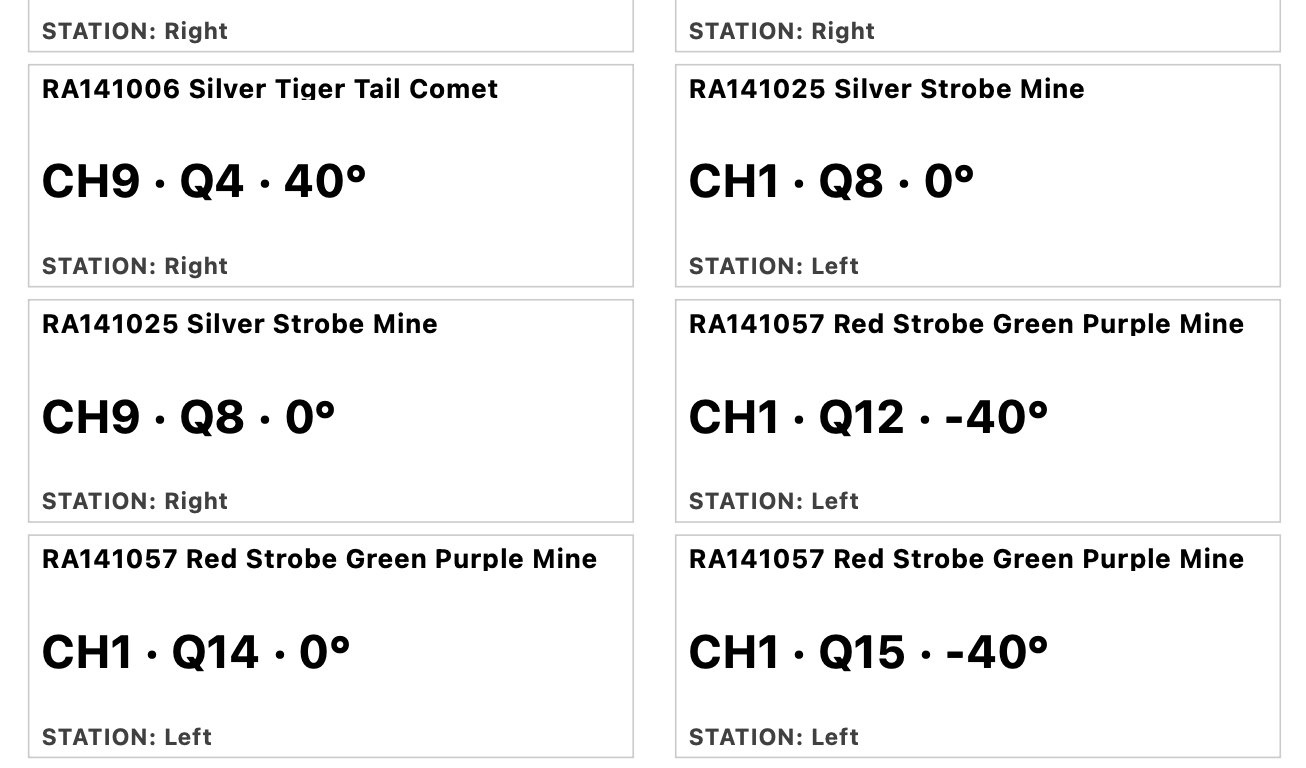
Small (1"×2⅝") shell stickers — the simplified layout.
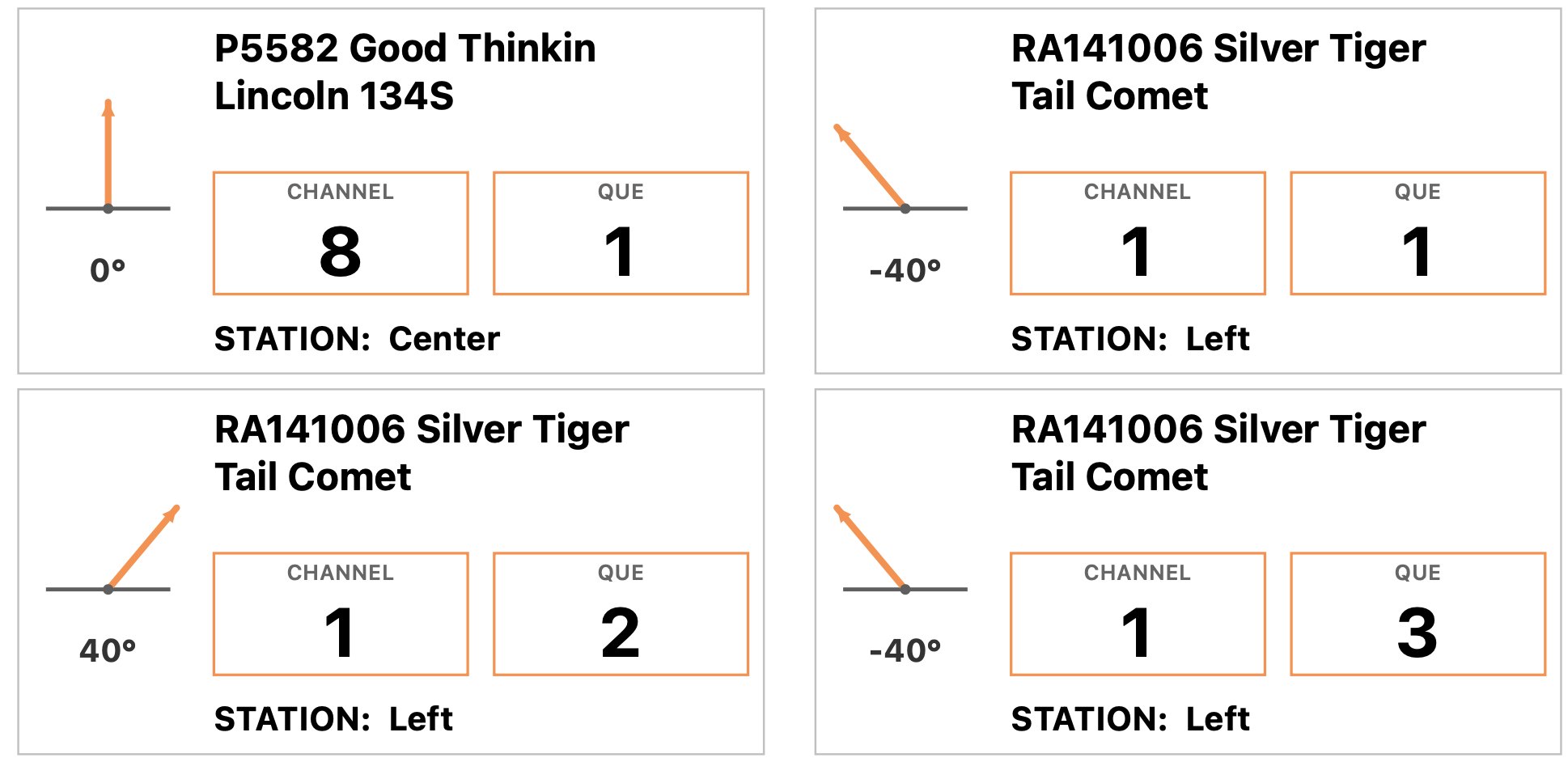
Large (4"×2") shell stickers, for comparison — note the added angle-direction arrow.
Breakout groups on stickers and in the CSV
Grouped ques collapse to a single channel and que slot, but stickers still print one per physical item:
- CSV — a Multi-Angle breakout exports as one row using the group's name; an ad hoc breakout exports as one row using the concatenated names of its members.
- Stickers — QBurner prints one sticker per physical item (so a three-item ad hoc group gets three stickers), each showing the shared channel and que and a BO badge. Stickers deliberately don't show mod-disambiguation labels like "18Q #1" — physical mods are interchangeable in the field, so that distinction only matters on-screen in the Inspector, Que Editor, and Project Setup.
Cobra CSV export settings
Project Setup has a Cobra CSV Export Settings section covering the fixed header-row values your Cobra firing software expects — nine free-text fields such as trigger channel, trigger button, deadman button, and audio box filename. QBurner passes these through exactly as typed rather than validating them, since it doesn't have authority over what your specific Cobra installation accepts.
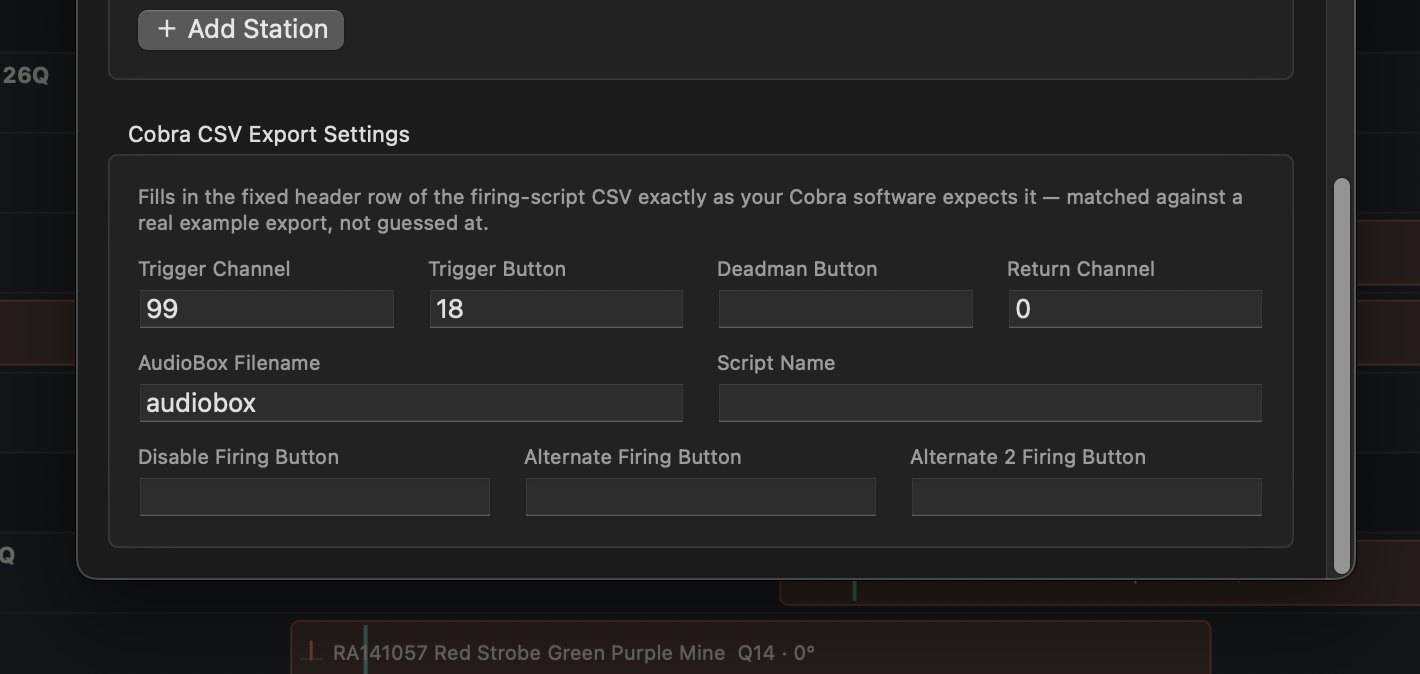
The Cobra CSV Export Settings panel in Project Setup.
The Script Name field falls back to your project's own name if you leave it blank.
Ques with no valid channel (for example, a que whose mod was deleted, or one that's over a mod's capacity) are excluded from the CSV export. QBurner shows a warning with the count of excluded ques before saving, so you can cancel to fix them or proceed anyway.
10Settings
App-wide preferences, available from the Settings window.
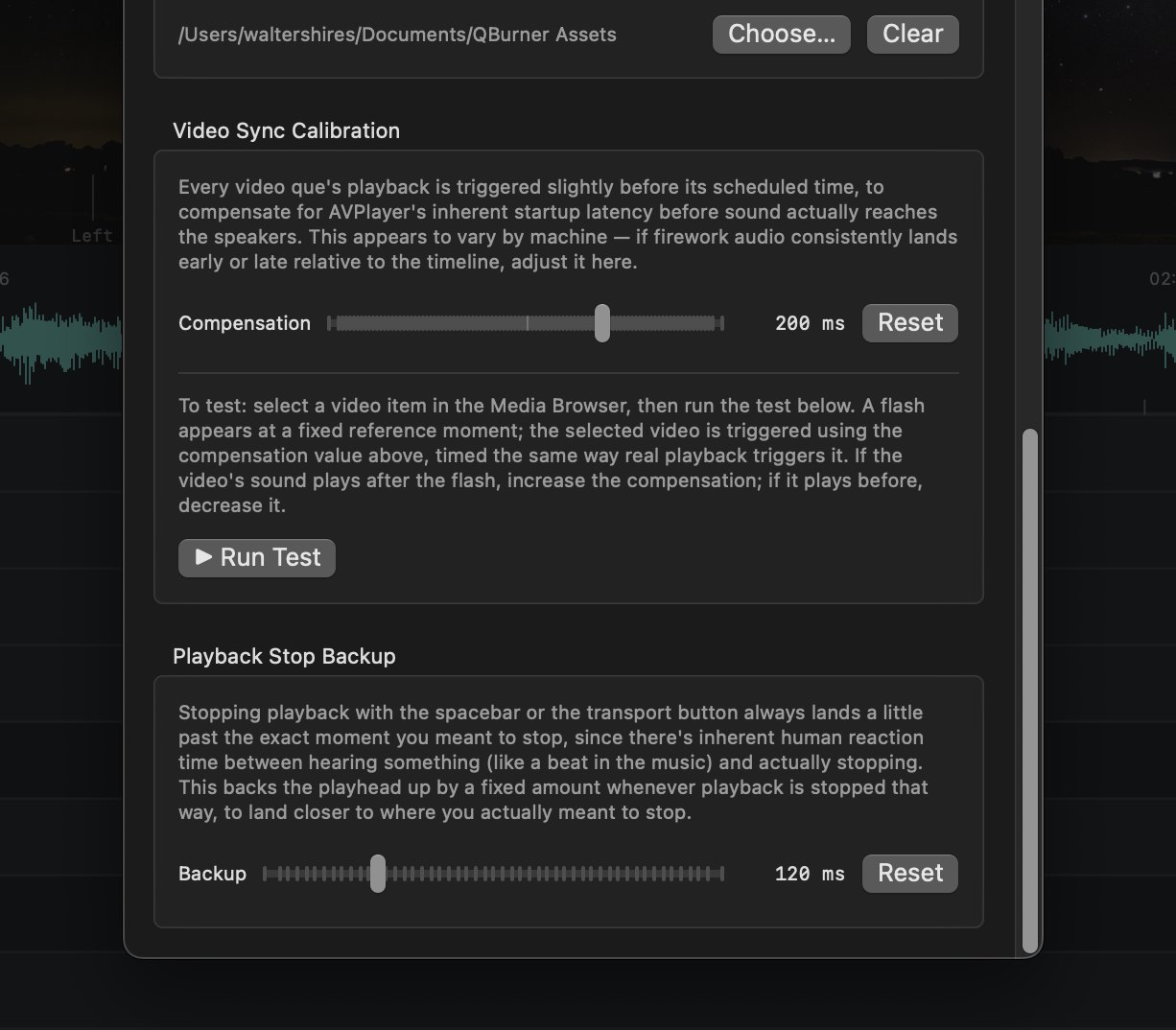
The Settings window, showing Video Sync Calibration and Playback Stop Backup.
| Setting | What it does |
|---|---|
| Video Sync Calibration | Compensates for playback startup latency, so video and audio line up correctly during live preview. |
| Playback Stop Backup | How far the playhead backs up when you stop playback with the spacebar or transport button. Defaults to 120 ms. |
| Angle presets | The quick-pick angle chips shown throughout the app. |
| Categories | Your media library's categories, and the extra keywords QBurner uses to guess a category automatically at import. |
| Break Marker Categories | Which categories show the teal break marker on the timeline — a checkbox per category. Defaults to Shells, Comets, Meteors, and Slices. |
11Keyboard Shortcuts
The fastest way to work once you know your way around.
| Shortcut | Action |
|---|---|
| Space | Start / stop playback |
| P or Enter | Place the selected media item at the playhead |
| Option + P or Enter | Place the selected media item so its break marker lands at the playhead |
| ⌘ + Option + P or Enter | Place the selected media item so its end lands at the playhead |
| Control-click a que | Open the quick angle menu |
| Option + ↑ / ↓ | Move the selected que to the adjacent station |
| ⌘ + + / - | Zoom the timeline in / out |
| Delete | Delete the selected que, or remove the selected media item |
12Troubleshooting
A few things that come up occasionally.
A video won't play or shows as missing
If a source video has moved or been renamed since it was imported, QBurner shows it as unavailable rather than silently dropping it. Use the media relink tool to point QBurner back at the file's new location — your show's que placements, timing, and angles are untouched either way.
"Nothing to Render"
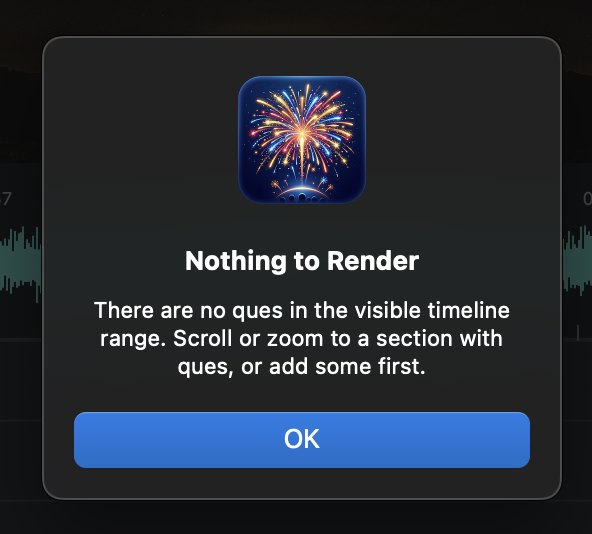
The Nothing to Render dialog, shown when the visible timeline range has no ques in it.
This means the section of timeline you tried to render doesn't contain any ques. Scroll or zoom to a section that does, or add some ques first.
A render fails unexpectedly
Try rendering a smaller or different section of the timeline. If the problem is limited to one particular range, that's useful information — hang onto which range it was in case you need to report it.